
How to Upgrade from Ubuntu 20.04 LTS to 22.04 LTS

How to Upgrade from Ubuntu 20.04 LTS to 22.04 LTS
Dallas Spohn dallasspohn@gmail.com
1.2, May 23, 2022: AsciiDoc article template
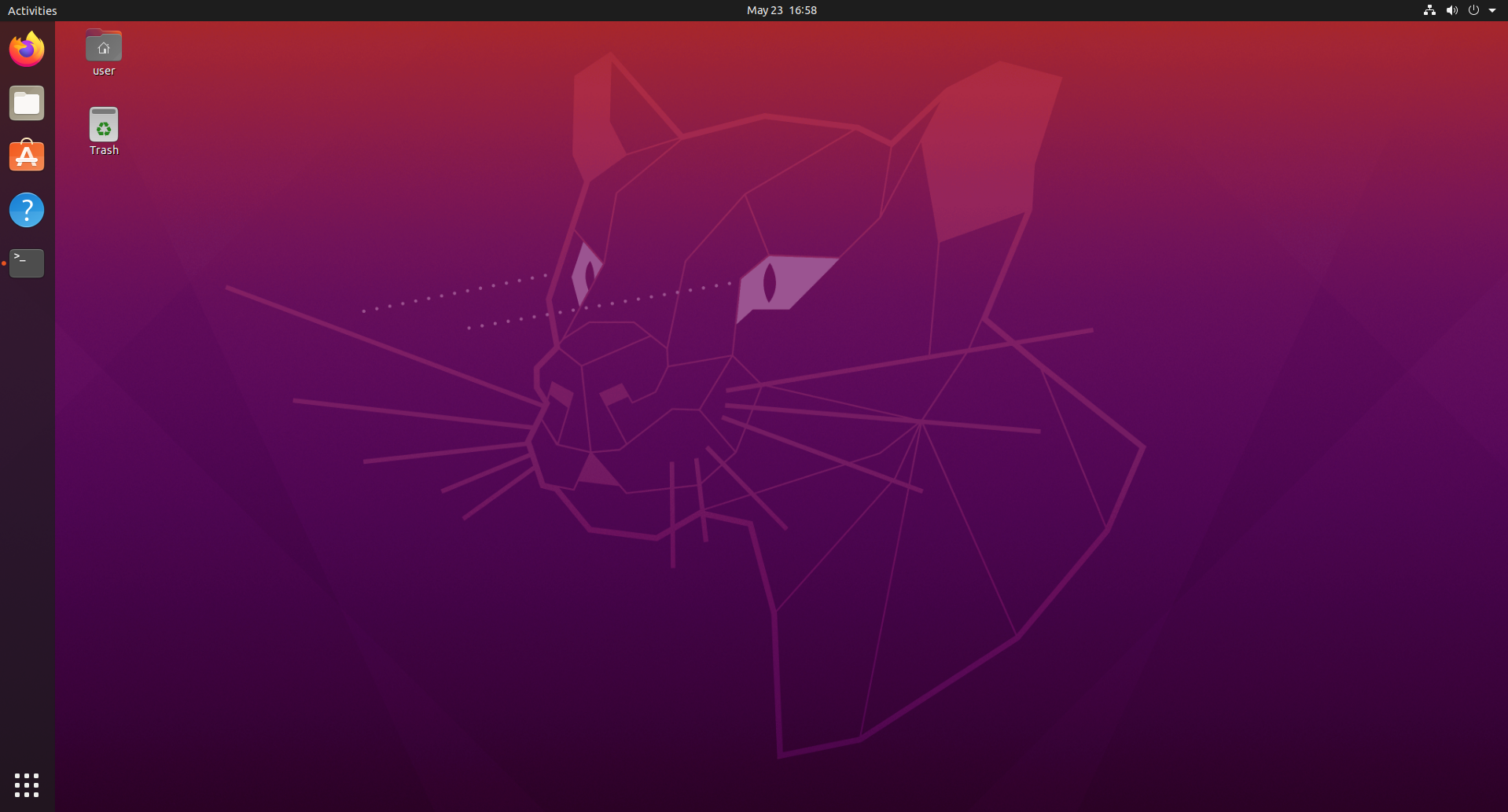
.Ubuntu 20.04 Desktop
What is LTS
Ubuntu, one of the most popular Linux distributions available to date and has released its newest OS version.
LTS stands for Long Term Support, what this means is that throughout the lifetime of a release there is a commitment to update, patch, and support the software.
Each Ubuntu LTS gets maintained for 10 years in total: 5 years of standard support + 5 years of ESM (Extended Security Maintenance).
95% of all Ubuntu installations are LTS releases. LTS releases are the ‘enterprise grade’ releases of Ubuntu. Ubuntu gets released every six months between LTS versions by Canonical, with 21 interim releases. Canonical supports interim releases for 9 months.
What Is New in Ubuntu 22.04 (Jammy Jellyfish) LTS?
Here are some of the new features that are new in Ubuntu 22.04. [compact]
- New dock mode
- Now you can change the size of the doc. It is possible to detach it and leave it as a floating look.
- Choose a different color scheme
- Now you can change that purple look to a color that help you personalize the desktop experience.
- New tools for screenshot and screencast
- Now the screencast and screenshot tool are combined.
- New option to enable and disable animations
- Ubuntu 22.04 now provides the option to toggle animations in the accessibility settings.
- Updated software center
- Icons are bigger and snap still gets priority over the DEB versions.
- Updated python 3.10
- OpenSSL 3.0
- Ruby 3.0
- PHP 8.1
- GCC 11
Upgrading from Ubuntu 20.04 LTS to 22.04 LTS
Ubuntu 22.04 LTS (“Jammy Jellyfish”) is out.
This how-to explains how to safely upgrade from Ubuntu 20.04 LTS (Focal Fossa) desktop to Ubuntu 22.04 LTS using the terminal.
A couple of things to remember before proceeding.
- Verify you are backed up with the most current files and databases.
- Verify you have enough free disk space. According to the Ubuntu documentation, a minimum of 2 GB of disk space is required for a full Ubuntu installation but your first update might run you out of space.
- If you are upgrading a laptop/notebook, know that this update takes some time. You do not want your battery to die during the process.
- Always a good practice to close all applications before starting the upgrade.
[NOTE] Make sure you have backed up your desktop or server. + https://www.tecmint.com/backup-tools-for-ubuntu-and-linux-mint/[The 5 Best Graphical Backup Tools for Ubuntu and Linux Mint]
First off, let's get the kernel and distribution description. Open the terminal of your choice and enter the following:
Get kernel version.
$ uname -mrsGet the Distribution, Release, and codename with:
$ lsb_release -a
.Finding Kernel and Distro Release image::linuxDistroNameAndKernelVersion.png[640,480]
Update you computer.
$ sudo apt update
Once the update has been completed
Alternatively you can use update-manager to see the graphical user interface management of software packages updates.
Use the option -c or --check-dist-upgrades to check if you are prompted for the new OS upgrade.
$ update-manager -c
[NOTE] Update-manager provides two services - the ability to upgrade packages within a release, and the ability to upgrade a release of Ubuntu to the next one.
image::update-manager-c.png[640,480]
If at this point you do not see a window stating there is a new Ubuntu release to 22.04 Jammy Jellyfish. We can force the Optionally check for default behavior for the release upgrades by viewing the release-upgrades file.
View the default prompting and behavior option you have set.
Cat out the release-upgrades file:
$ cat /etc/update-manager/release-upgrades
You should see a Prompt=lts at the bottom of that file
Type the do-release-upgrade command as follows to start the update procedure:
Now you should start the upgrade but if still does not find the newest release force it with a -d like so:
$ sudo do-release-upgrade -d
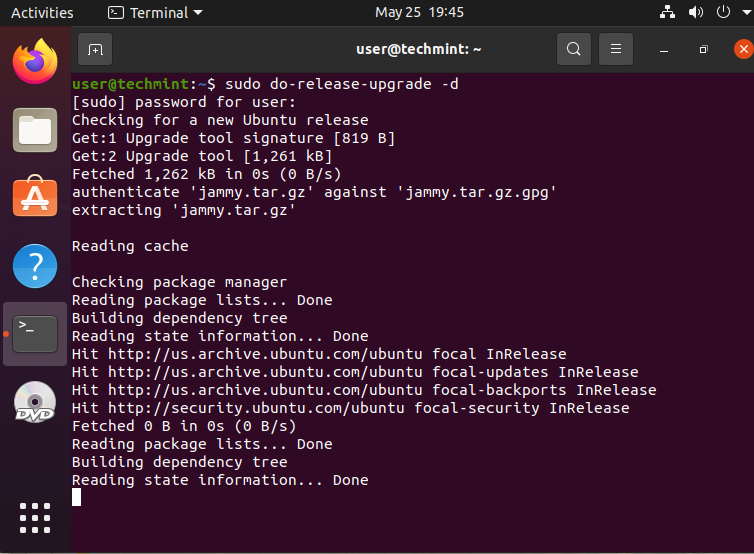 The update takes several minutes with promptings prior to finishing.
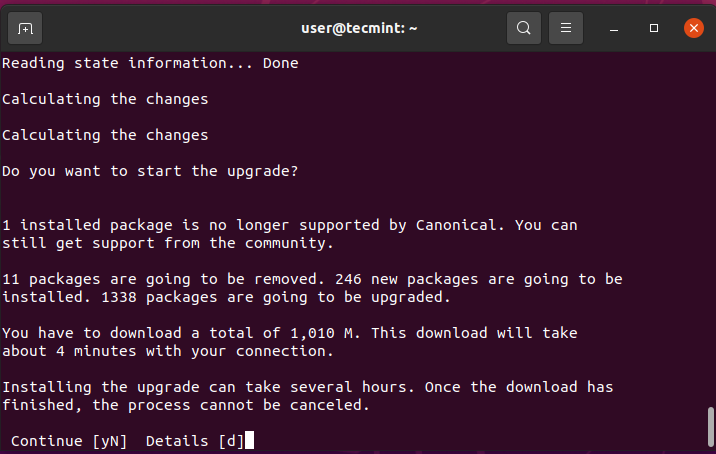
Finally, because new kernel was installed, a reboot is required.
After rebooting after Upgrade
Verify the kernel and distribution descriptions.
$ uname -mrs$ lsb_release -a
.Ubuntu 22.04 Kernel and Distro Release
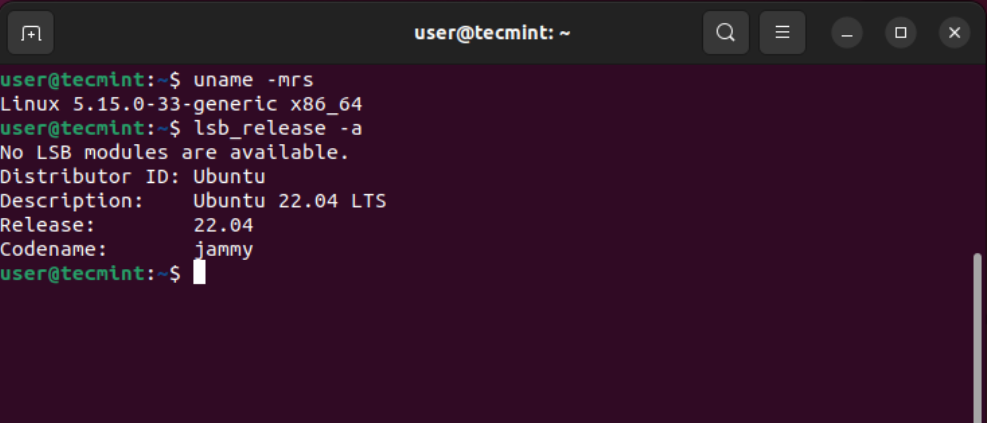
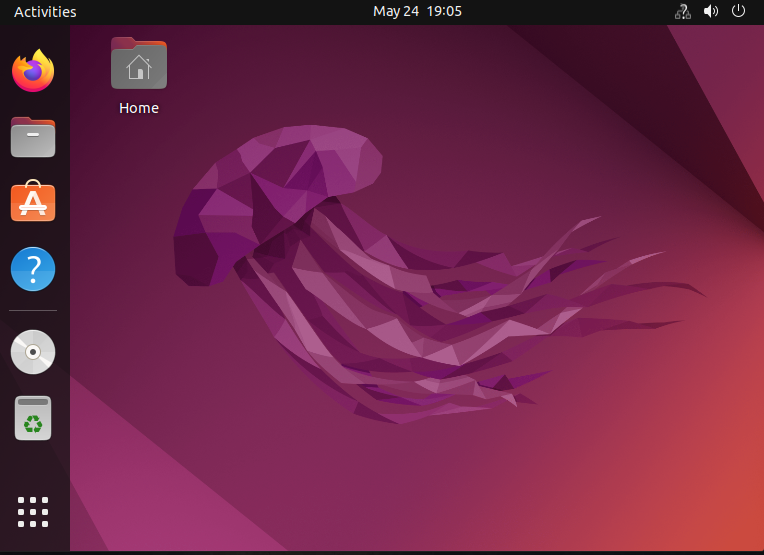
You will then be presented with a new desktop.
.Ubuntu 22.04 Desktop
About the author
Dallas, a seasoned professional with a diverse background, transitions seamlessly between roles as a systems admin turned developer, technical writer, and curriculum developer at Red Hat. With a knack for unraveling complex concepts, he crafts engaging materials primarily in DocBook, guiding enthusiasts through the intricacies of Red Hat's certification courses. In his earlier days, Dallas's passion for Anime led him to contribute to Anime News Network, channeling his creativity and expertise into captivating content. His contributions extended beyond writing as he interviewed prominent figures in the Anime industry, offering insights into their creative processes and visions. Beyond his professional pursuits, he's a devoted husband and father, cherishing moments with his loved ones. Dallas's journey in the tech industry spans various roles, from a security developer at NTT Security to an operations architect overseeing Linux servers for commercial transcoding. His tenure at esteemed institutions like Goldman Sachs and Lockheed Martin has honed his skills as a systems engineer, instilling in him a deep-rooted understanding of complex systems. An avid FPV pilot, Dallas finds exhilaration in soaring through the skies with his drones, often contemplating the lessons learned from his aerial adventures. His diverse experiences, including serving as a naval submariner aboard the USS Alexandria and pursuing higher education in England, enrich his perspective and fuel his thirst for knowledge.
Comments
Join the discussionNo comments yet. Be the first to comment.